
Pipedrive to Google Sheets Data Exports
Learn how to export data from Pipedrive to Google Sheets, Excel, and BigQuery using Coupler & Flatly to visualize it in BI tools like Tableau & PowerBI.

Introduction
Time and again, as a business founder or sales manager, or director, you’d want to export data from Pipedrive to Google Sheets or Excel. The reasons could be many:
- back up your CRM data periodically to Google Drive or Google BigQuery
- run some quick analyses on the data in Google Sheets, MS Excel, BigQuery
- advanced reporting in Google Sheets or Tableau to analyze the performance
- develop dashboards in Tableau or Google Data Studio to monitor the health of your business
Depending on your particular requirement, one or many of the following options will work for you.
Problem with Pipedrive Insights
I have written a detailed list of metrics that you can track in Pipedrive using Pipedrive Insights.
The native reporting solution, insights, and dashboards don’t give you all the information you need. You can’t wrangle data (like you can with tools like Google Data Studio and Tableau) to get the answers you want. Additionally, these native dashboards don’t have interactivity as Tableau does.
If you dare to find insights, you have to do what I did.
- Export data from Pipedrive
- Visualize it either:
- in a spreadsheets program like Excel, Google Sheets, etc., or
- in a BI tool like Google Data Studio, Tableau, or PowerBI.
But not without reinventing the wheel, which I have already done.
The exact process and tools that you choose are secondary. What’s important is for you to know that something like this is possible and easily doable. You can expect a high Return on Investment in terms of business insights and data-driven decision-making.
Here’s a complete guide to learn how to use Pipedrive.
You will find apps to set up ETL and Data Pipelines here on altdirectory.fyi.
How does setting up a data pipeline for Pipedrive help?
If you’d like to see what the end result will look like, you should check the following two resources:
- A live Tableau dashboard that uses data from Pipedrive
- A tutorial that walks you through how to use Tableau
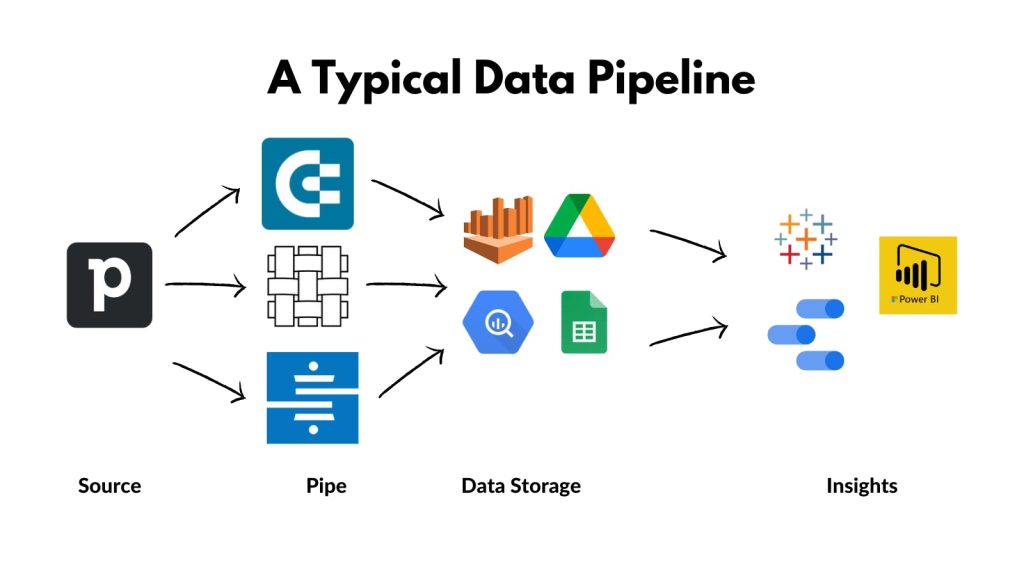
An essential part of visualizing data from Pipedrive in Tableau is setting up the data pipeline and the following image shows the data flow from the source (Pipedrive) to the destination (Tableau, Google Data Studio, PowerBI).
How to export data from Pipedrive to Google Sheets using Coupler.io
Coupler allows you to create bots that regularly export data from Pipedrive to a Google Sheets workbook. Other data destinations that Coupler supports are Microsoft Excel and Google BigQuery.
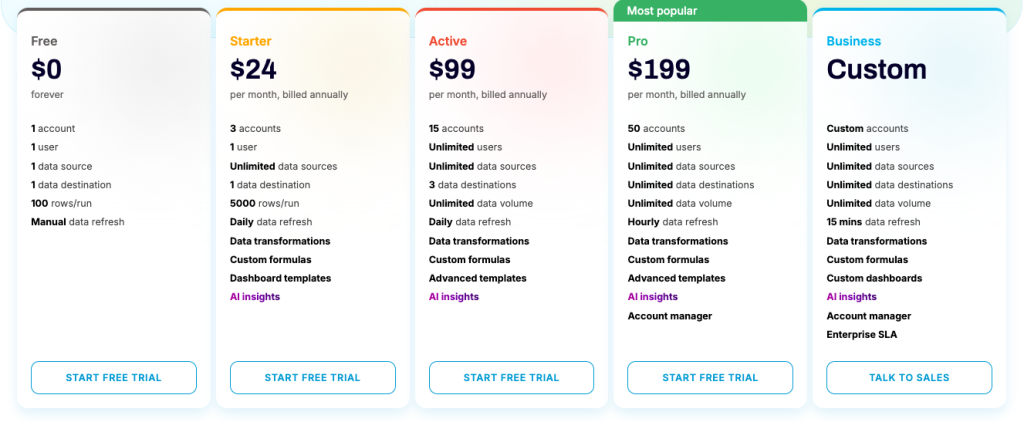
Coupler’s pricing plans are listed below. Start a 14-day free trial and sign up for the annual plan to save 25%.
Setting up Pipedrive and Google Sheets integration using Coupler.io
Let’s take a brief look at how to set up a data importer in Coupler.io. The following is an example of exporting Call Logs, but it can be set up to export most objects in Pipedrive.
Step 1: If you’re new to Coupler, sign up for Coupler here (affiliate link).
Step 2: Once signed up, browse to Importers and click the + ADD NEW button.

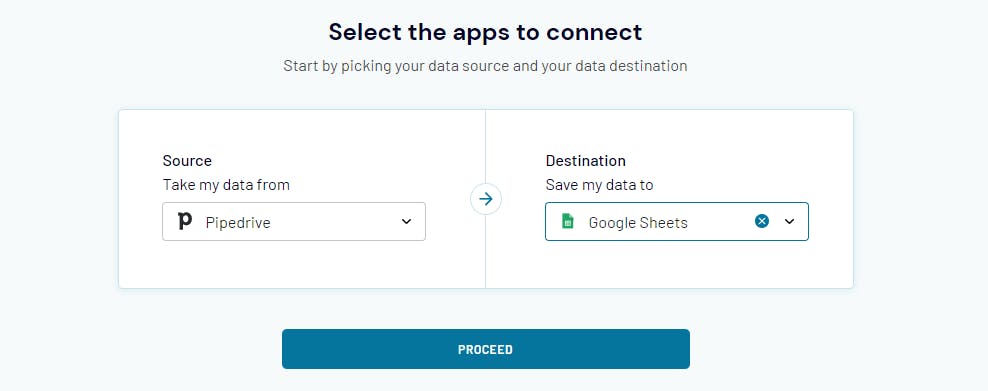
Step 3: Select apps to connect. In this case, we want to send data from Pipedrive to Google Sheets. So the source app will be Pipedrive and the destination app will be Google Sheets.
For destination, you can also select Microsoft Excel or Google BigQuery.
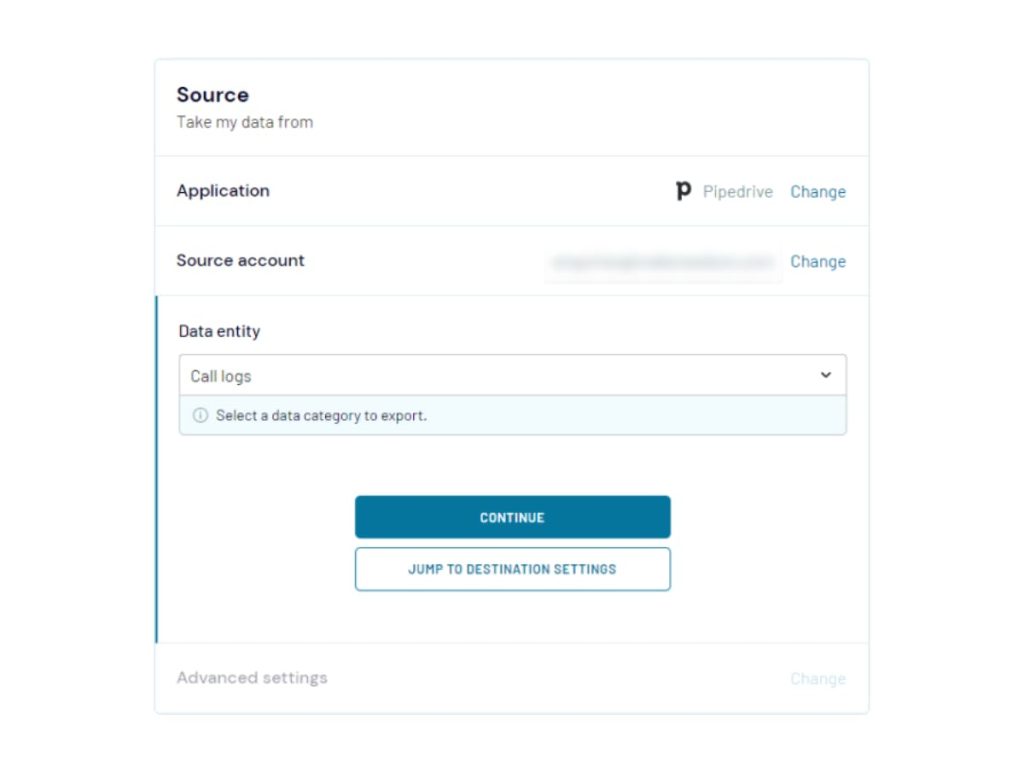
Step 4: Authenticate your Pipedrive account.
Step 5: Select Call logs as the Data entity.
In this step, you can select any other object you would like to export from Pipedrive, namely:
- Organizations
- Persons
- Deals
- Leads
- Activities
- Products
- Files
- Call Logs
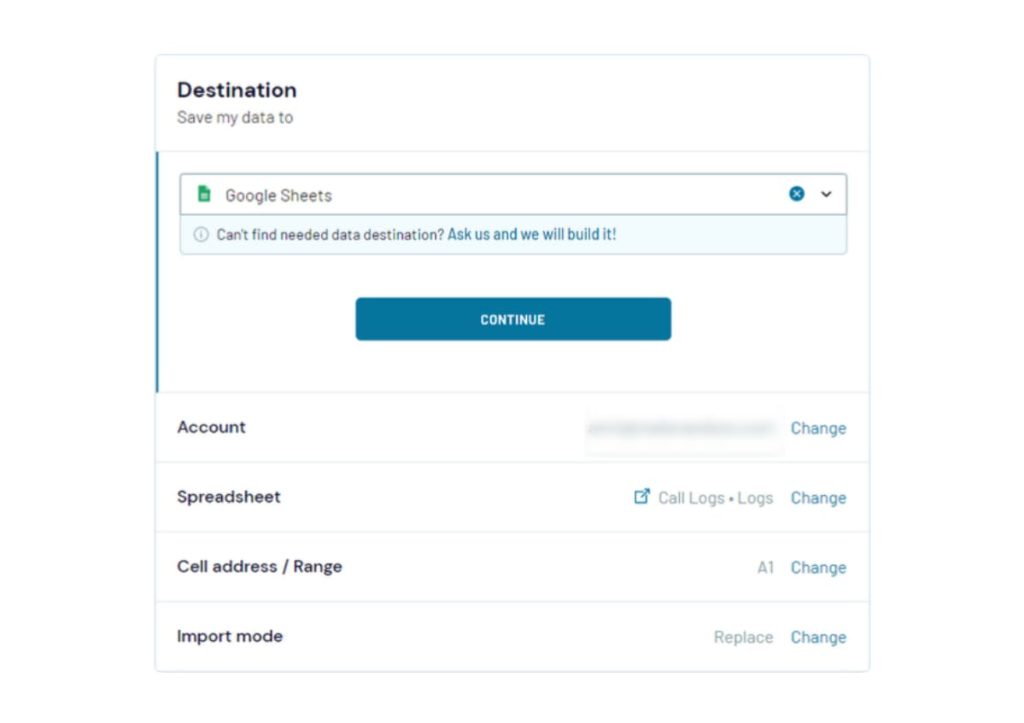
Step 6: For Destination, connect your Google Sheets account to replicate the following settings.
Step 7: Now you define the frequency with which you’d like to refresh the data. Select automatic data refresh in this step and then configure it using the options shown below.
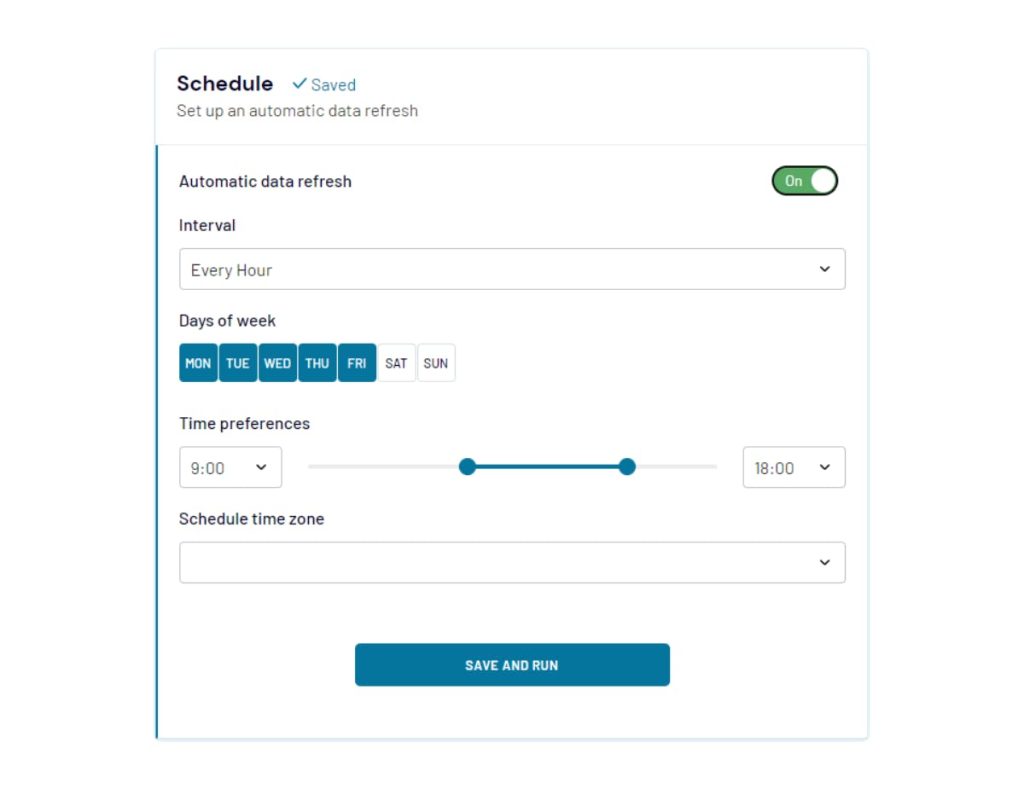
Step 8: Hit the SAVE AND RUN button to set up the first-time download of your Call logs.
Summary
Of all the options that I have evaluated, Coupler.io seems to be the best option as detailed in the above steps. You can export data from Pipedrive to Google Sheets, Microsoft Excel, or Google BigQuery. This data can then be analyzed directly in Google Sheets, MS Excel, or be read into BI tools like Google Data Studio or Tableau to build powerful reports and dashboards that will help grow your business.